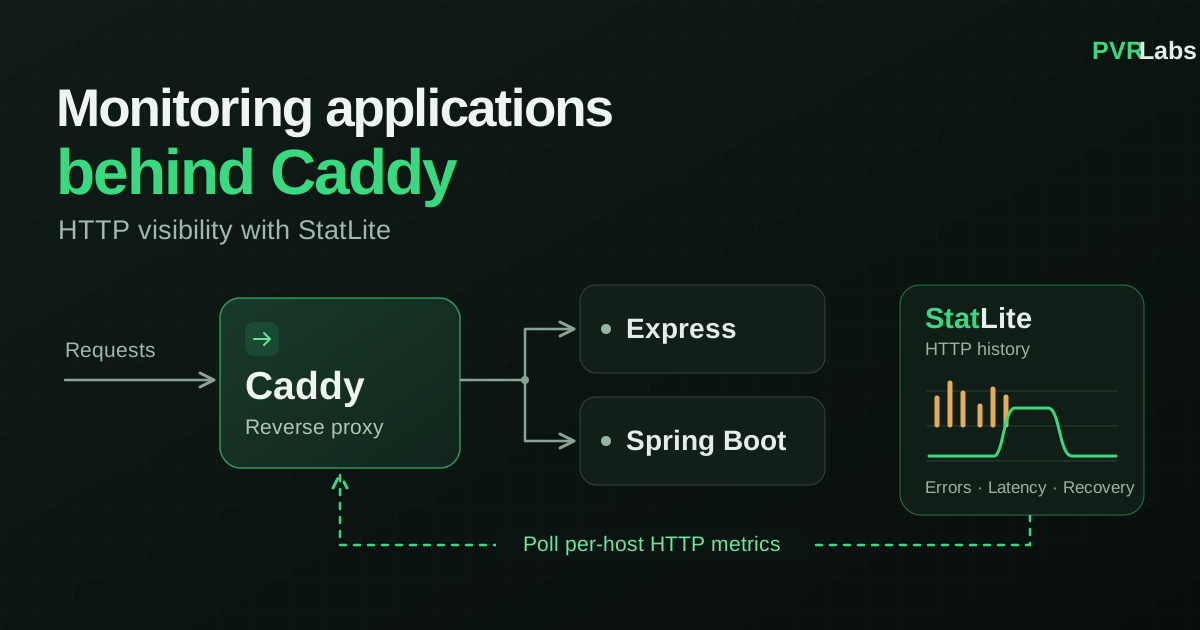
You already run one or more applications behind Caddy. Now you want to know how much traffic they receive, whether HTTP errors are increasing, and whether responses are getting slower. For that first view, the reverse proxy is a useful place to collect metrics: Caddy already observes the requests passing through it.
I develop StatLite, which collects Caddy's per-host metrics and keeps a local dashboard history. This HTTP-level view requires no application changes or application-specific agents, and no separate Prometheus or Grafana deployment.
This setup uses StatLite 0.7.0. Follow the installation guide to install StatLite on the server where it can reach Caddy's metrics endpoint.
Enable Caddy metrics
For a conventional setup with two applications on the same server, enable per_host in Caddy's global metrics configuration:
{
    metrics {
        per_host
    }
}

api.example.com {
    reverse_proxy 127.0.0.1:3000
}

orders.example.com {
    reverse_proxy 127.0.0.1:8080
}
Replace the example hostnames and upstream addresses with your existing sites. Keep their normal DNS and HTTPS configuration. Each named site proxies directly to one application; per-host metrics let the monitoring process distinguish their traffic.
This same-server example uses Caddy's default loopback admin endpoint at http://127.0.0.1:2019/metrics. Keep it private. If Caddy and StatLite run in separate containers, use the private metrics-listener arrangement in the guide rather than exposing the writable admin endpoint.
Connect StatLite
Add one Caddy target per hostname to your StatLite configuration:
polling:
  interval: "30s"
targets:
  - name: api-via-caddy
    type: caddy
    url: http://127.0.0.1:2019/metrics
    host: api.example.com
  - name: orders-via-caddy
    type: caddy
    url: http://127.0.0.1:2019/metrics
    host: orders.example.com
Both targets use the same metrics endpoint. The host field selects each application's series and must match Caddy's emitted host label exactly, without a scheme or path. Use your real hostnames consistently in both configurations.
Keep polling at 30 seconds or longer. Send some requests through each site and allow two usable polls: the first establishes a counter baseline, and later polls produce request and error counts. Idle intervals show zero requests; there is no average response latency when no requests were observed.
The StatLite Caddy monitoring guide covers supported routing shapes, listener configuration and troubleshooting.
What you can monitor
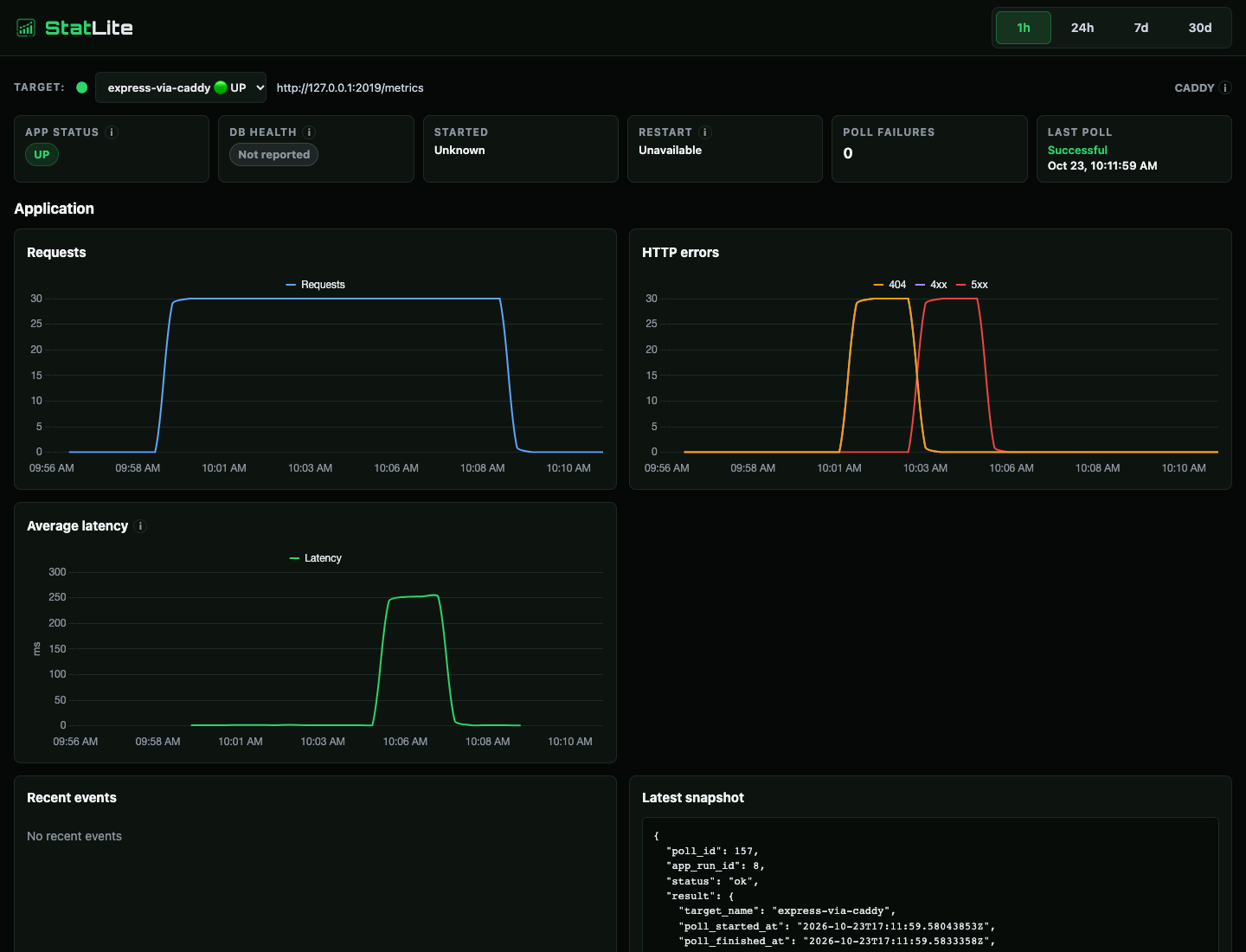
The dashboard brings request volume, 404 and 5xx responses, and average response latency into the same history. You can see whether an error increase coincides with a traffic change, or whether successful responses are getting slower.
In this example, I deliberately introduced a burst of 404s, a separate burst of 500s, and then slower successful responses before returning to normal. Traffic remained steady through those changes. The final request-count drop marks the workload ending, not an application outage. The chart displays counts per polling interval, rather than requests per second.
Multiple applications behind Caddy
Each configured hostname gets its own monitoring history. The example paired Express with Spring Boot behind one Caddy instance. Spring's traffic stayed steady while Express showed the injected errors and latency change.
The applications can use different languages or frameworks. For this HTTP view, Caddy supplies the metrics, so neither application needs an application-specific metrics helper. Separate hostnames are the boundary here; this configuration does not divide applications mounted under different paths on one hostname.
When deeper monitoring is useful
Direct Spring Boot integration can add application health, database health when configured, JVM memory, process CPU, and startup/restart information. That is optional additional context, not a prerequisite for monitoring Spring's HTTP traffic through Caddy. See the Spring monitoring guide for setup and the experiment's direct Spring dashboard for an example. Proxy and application latency measure different boundaries.

Direct framework integrations also cover Quarkus and Micronaut. Application-side recipes are available for Express, FastAPI, Django, Go net/http, Gin, and Javalin. These recipes add process CPU and runtime-memory visibility alongside HTTP metrics, and require integration code in the application. Follow each guide for its setup and deployment limits.
Limits and further reading
Caddy monitors HTTP traffic that passes through it. Bypass traffic and background jobs are outside this view. Average response latency describes what Caddy observes, not isolated application execution time or tail latency.
A Caddy target marked UP means StatLite successfully collected Caddy metrics. It does not verify upstream application health. An application can return errors while Caddy continues reporting metrics successfully.
Use the StatLite documentation to choose your monitoring setup. The detailed experiment report contains the measured results, supporting dashboards, source and reproducible evidence behind this example.